Home/SharePoint/MacroView/Features
Feature overviewEvery MacroView feature, in one overview
From dragging one e-mail into SharePoint to filing whole mailboxes by rule. We group the features into clear themes, each with what it means in your daily work.
Book an introductory call Browse the features
Trusted by more than 100 organisations in the BeNeLux




















In short
MacroView adds e-mail and document management to SharePoint, Teams and OneDrive from Outlook, Office and any device. The features fall into six themes: filing, automating, finding, control, structure and migration. SoftAdvice delivers the full MacroView range and sets up the SharePoint structure behind it, in your own Microsoft 365 environment.
Three ways to explore MacroView
Per theme
Five themes, each with a screenshot, the features that matter most and a page that explains it in depth.
All features at a glance
Every feature as a short card. Filter by theme and open the topic that explains it.
In a call about your mailbox
We look at how you file e-mail and documents today and show what MacroView changes.
What MacroView does, theme by theme
Choose a theme to see its key features. Every theme links to the page that explains it in depth.
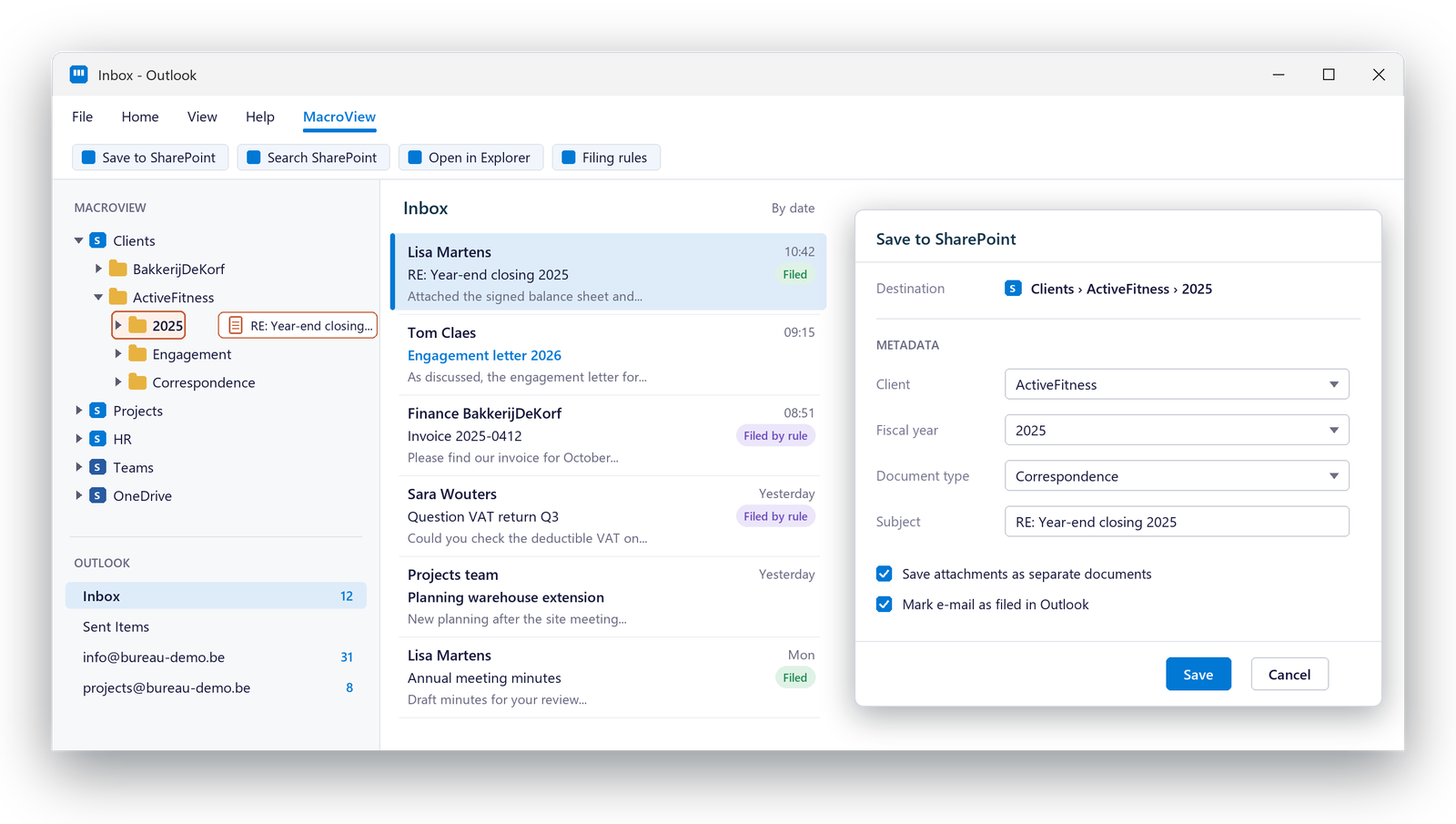
E-mail and documents in the right file, in one move
SharePoint, Teams and OneDrive as a tree inside Outlook. Drag, confirm the metadata, done.
- Drag and drop to and from SharePoint
- Metadata captured while filing
- Save from Word, Excel, PowerPoint and Adobe with DMS Pro
- MacroView Mail on any device
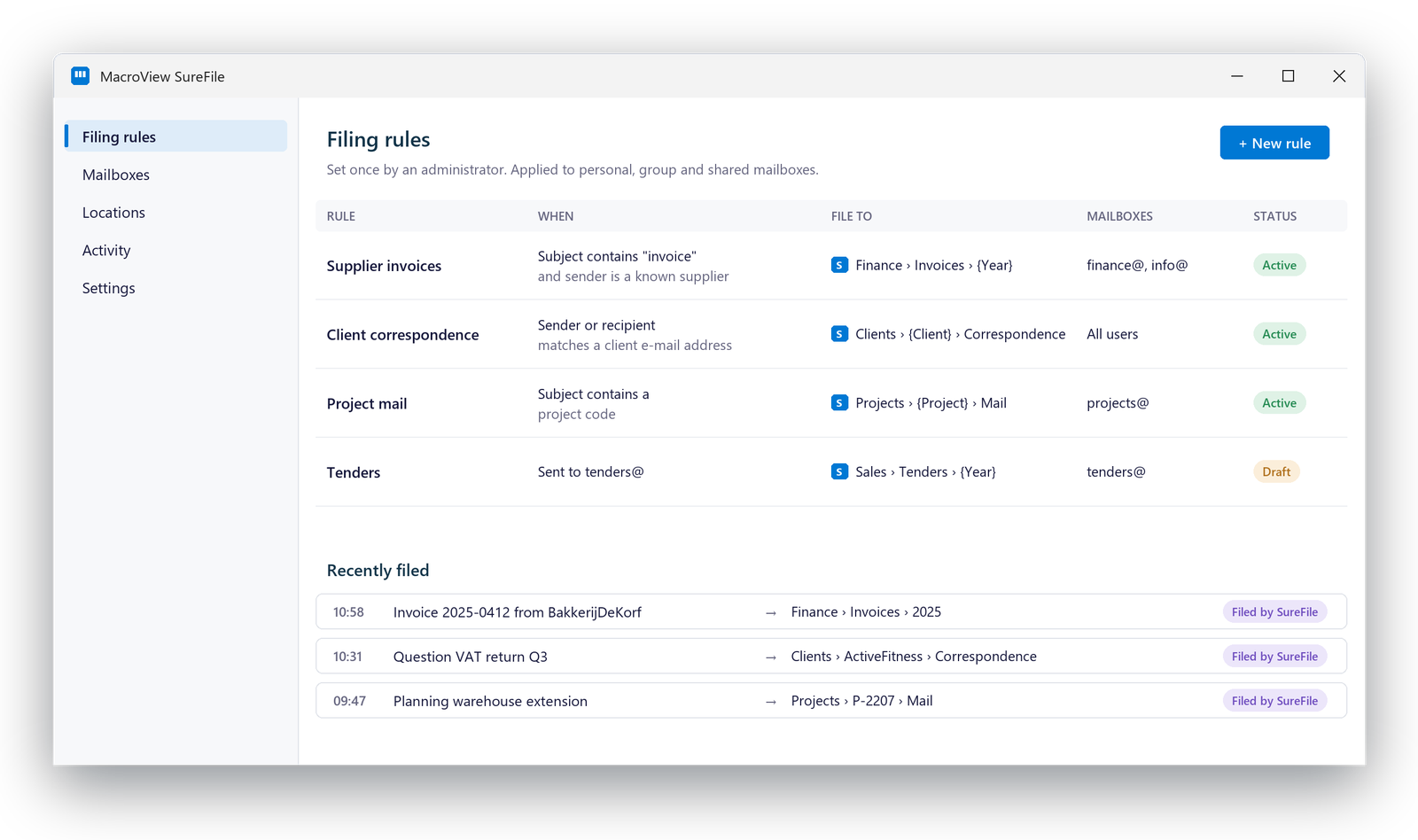
E-mail that files itself, also from shared mailboxes
MacroView SureFile files e-mail by central rules set by an administrator.
- Central rules, deployed by an administrator
- Several new or existing locations per rule
- Filed e-mails categorised in Outlook
- Enterprise edition as a service in your own Azure
Find every e-mail and document without leaving Outlook
Configurable search panels search SharePoint by keyword, metadata, document type or folder, right inside Outlook and Teams.
- Search and filter on metadata
- Version history and restore
- Document ID search with Auto Numbering
- Several tenants in one navigation pane
Illustrative example
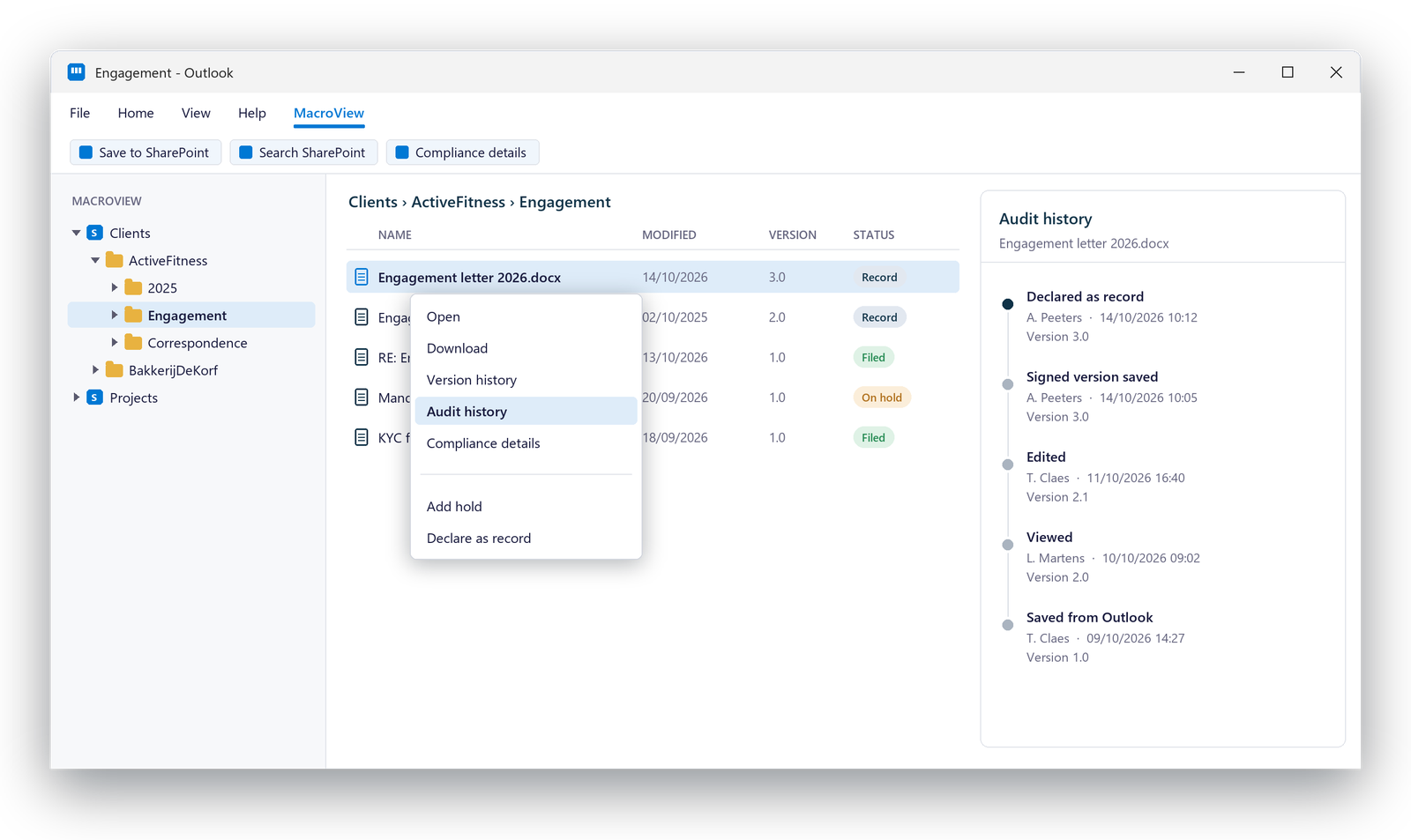
Records management from the right-click menu
The records functions of Microsoft 365 and SharePoint, brought to the desktop.
- Audit history: user, date, version, event
- Add or remove holds from Outlook
- Declare in-place records
- E-mails kept intact as .msg
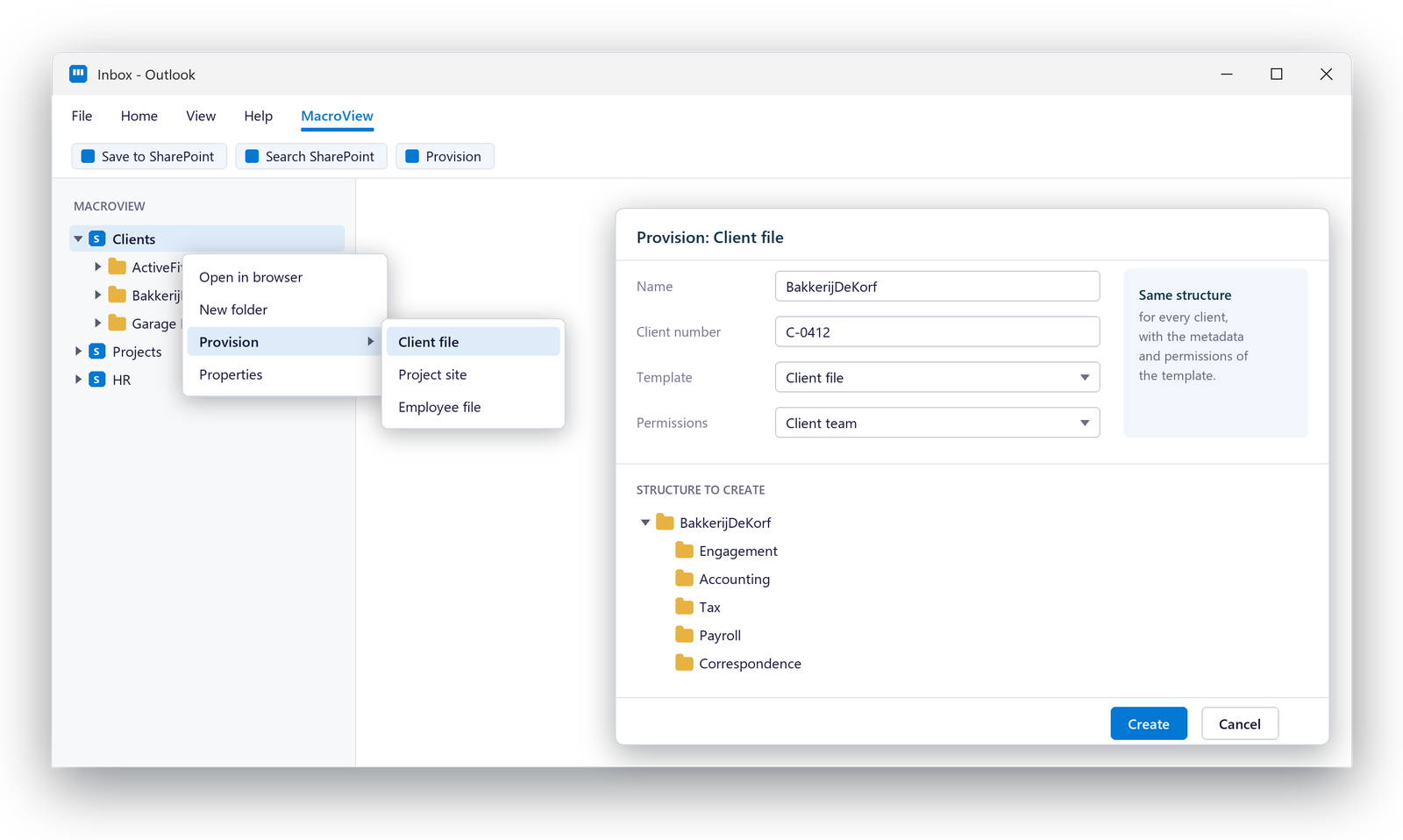
The same structure for every file, with the history on board
Provisioner creates structure from templates. Migrator brings e-mail from PST files, Public Folders and file shares.
- Sites, libraries and folders from a template
- Right-click provisioning, permission-based
- Migration with metadata, duplicates removed
- Standardiser for e-mails already in SharePoint
Discover the key features
Every card is one feature. Filter by theme, and open a card for the topic that explains it.
Tree view in Outlook
SharePoint, Teams and OneDrive as a Windows-style tree, with right-click menus.
Read moreMetadata while filing
E-mail metadata captured automatically, plus the fields that matter to you.
Read moreOffice and Adobe panel
DMS Pro adds a DMS panel to Word, Excel, PowerPoint and Adobe Acrobat.
Read moreNew Outlook and Teams
DMS Next brings document management and search to New and Classic Outlook and Teams.
Read moreFiling as a service
SureFile Enterprise runs in your own Azure, even when Outlook is closed.
Read moreDocument numbering
Auto Numbering puts reference and version in the title bar and footer, and lets you search by document ID.
Read moreRight-click provisioning
A new client or project file in one right-click, for the people you allow.
Read moreE-mail migration
From Outlook, Public Folders and file shares to SharePoint, Teams or OneDrive.
Read moreFrequently asked questions about the MacroView features
Which MacroView product do we need?
It depends on how you work: DMS Next for New Outlook and Teams, DMS or DMS Pro for Classic Outlook and Office, Mail for mobile, SureFile for automatic filing. We help you choose the combination that fits.
Where are our e-mails and documents stored?
In SharePoint, Teams or OneDrive in your own Microsoft 365 environment, with your existing permissions.
Do our people need training?
Little. MacroView uses a Windows-style tree, right-click menus and the Office ribbon.
SharePoint with MacroView or M-Files?
SharePoint with MacroView is strong at collaborating and filing. For workflows with approvals, strict audits or documents in several files at once, M-Files often fits better. SoftAdvice works with both and gives you an honest answer.
Want to see MacroView in your Outlook?
Book an introductory call. We look at how you file e-mail and documents today and which MacroView products fit.